
• Hosting
    • Web Hosting
    • International VPS Hosting
    • Windows VPS Hosting
    • Nepal VPS Hosting
    • WordPress Hosting
  • Services
    • Microsoft Office 365
    • Zoho Mail
    • Qbox Email
    • SSL Certificates
    • SEO Tools
  • Domain
    • Domain Transfer
    • Domain Checker
    • Whois | Domain owner details
  • Pages
    • About us
    • Web Hosting compare
    • Contact us
  • Blog
    • Blogs
LINKUPNEPAL LOGO LINKUPNEPAL LOGO
  • Hosting
    • Web Hosting
    • International VPS Hosting
    • Windows VPS Hosting
    • Nepal VPS Hosting
    • WordPress Hosting
  • Services
    • Microsoft Office 365
    • Zoho Mail
    • Qbox Email
    • SSL Certificates
    • SEO Tools
  • Domain
    • Domain Transfer
    • Domain Checker
    • Whois | Domain owner details
  • Pages
    • About us
    • Web Hosting compare
    • Contact us
  • Blog
    • Blogs
Client Area

How to deploy your python project using python manager (django)

how to install python app
by Linkupnepal Hosting
January 29, 2026
Vps Hosting

Our test project: https://github.com/liangliangyy/DjangoBlog

panel: aaPanel

1. Go to the directory where you will store the code

`cd /www/python/flask`

2. Run the git clone command on your terminal to get the project

git clone https://github.com/liangliangyy/DjangoBlog.git

3. Install the python version your project needs
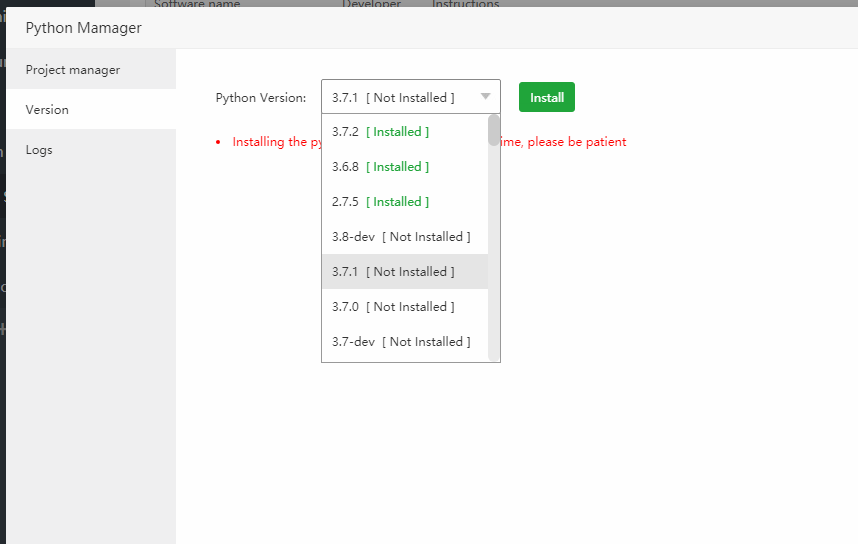
how to deploy python in aapanel

4.Start adding python projects

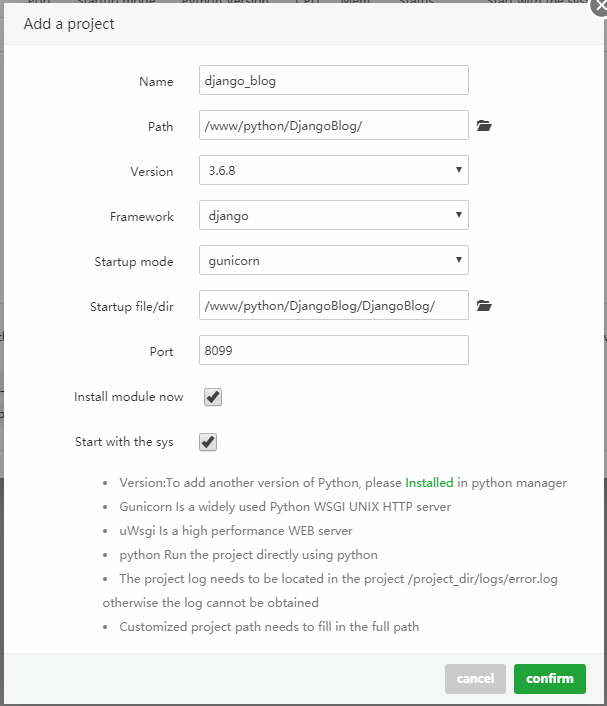
Parameter Description:

  • Name: Give your project a name
  • Path: Select the root directory of the project
  • Version: Choose the python version your project needs
  • Framework: The project project framework, my project here is Flask, so choose django
  • Startup Mode: Choose gunicorn here, You can switch other options according to your needs.
  • Startuo file/dir: In general, diango selects the project directory to start, and flask selects the py file to start.
  • Install module now: When adding a project, install the required modules according to the documentation of the project root directory requirements.txt.

When we finish project creation, we can’t open the project normally.We need to initialize the project

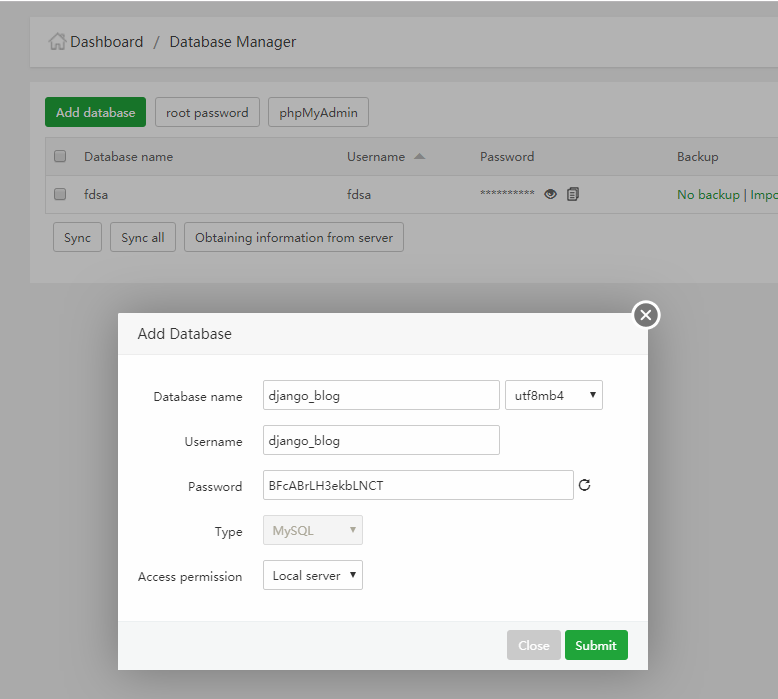
5. According to the project requirements, we first create the databases and modify the project database configuration.

create a database:
6.modify the project database configuration
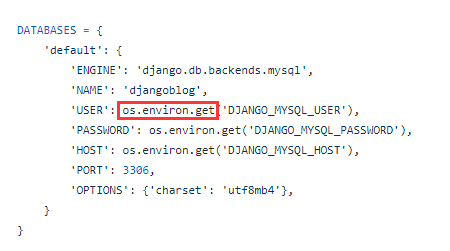
The default database configuration is to get the database account and other information from the environment variables, we refer to the installation tutorial to remove the os.environ.get method
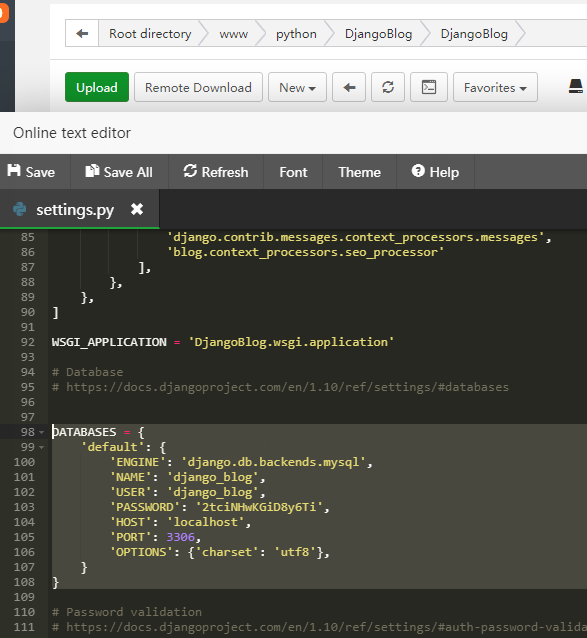
Go into the project’s virtual environment and execute the following command

Go into the project’s virtual environment:
source /www/python/DjangoBlog/django_blog_venv/bin/activate

Now execute the following command :

cd /www/python/DjangoBlog/ #your project dir
./manage.py makemigrations
./manage.py migrate

Create the SuperAdmin:
./manage.py createsuperuser
Create test data:
./manage.py create_testdata
Collect static files:

./manage.py collectstatic --noinput
./manage.py compress --force

Now we can access our blog using http://192.168.1.199:8099

Order Now
Tags: aapanelHostinghow toprocesspython
Share:

Leave a Reply Cancel reply

Your email address will not be published. Required fields are marked *

हालैका पोस्टहरू

  • How to Install OpenClaw Script on Linkupnepal Hosting VPS (Auto & Manual Guide)
  • How to Find the Best Web Hosting in Nepal (Complete Guide for 2026)
  • Step-by-Step Guide to Moving Your Website to Linkupnepal Hosting (2026)
  • How to Improve Your Website’s SEO with Reliable Hosting (2026 Guide)
  • Affordable Hosting Plans for Startups and Growing Businesses (2026 Guide)

हालैका टिप्पणीहरू

No comments to show.
LINKUPNEPAL LOGO
Kageshwori Manohara-7, Kathmandu, Nepal
+977-9804522734

info@linkupnepal.com

Domains
  • Domain Name Search
  • Domain Transfer
  • Domain Pricing
  • WHOIS Lookup
Hosting
  • Shared Hosting
  • Linux VPS Hosting
  • Windows VPS
  • Nepali VPS Hosting
  • WordPress Hosting
Help
  • Get Support
  • Account Login
  • Knowledgebase
  • Terms & Conditions
  • Privacy & Policy
Company
  • About Us
  • Contact Us
  • Latest News
  • Bulk SMS
Linkupnepal Hosting – Top 25 Gaming Hosting 2026
Join Our Newsletter

We’ll send you news and offers.

Social Media
Facebook-f Instagram Linkedin Youtube Tiktok
© All Rights Reserved - Linkup Nepal Pvt Ltd